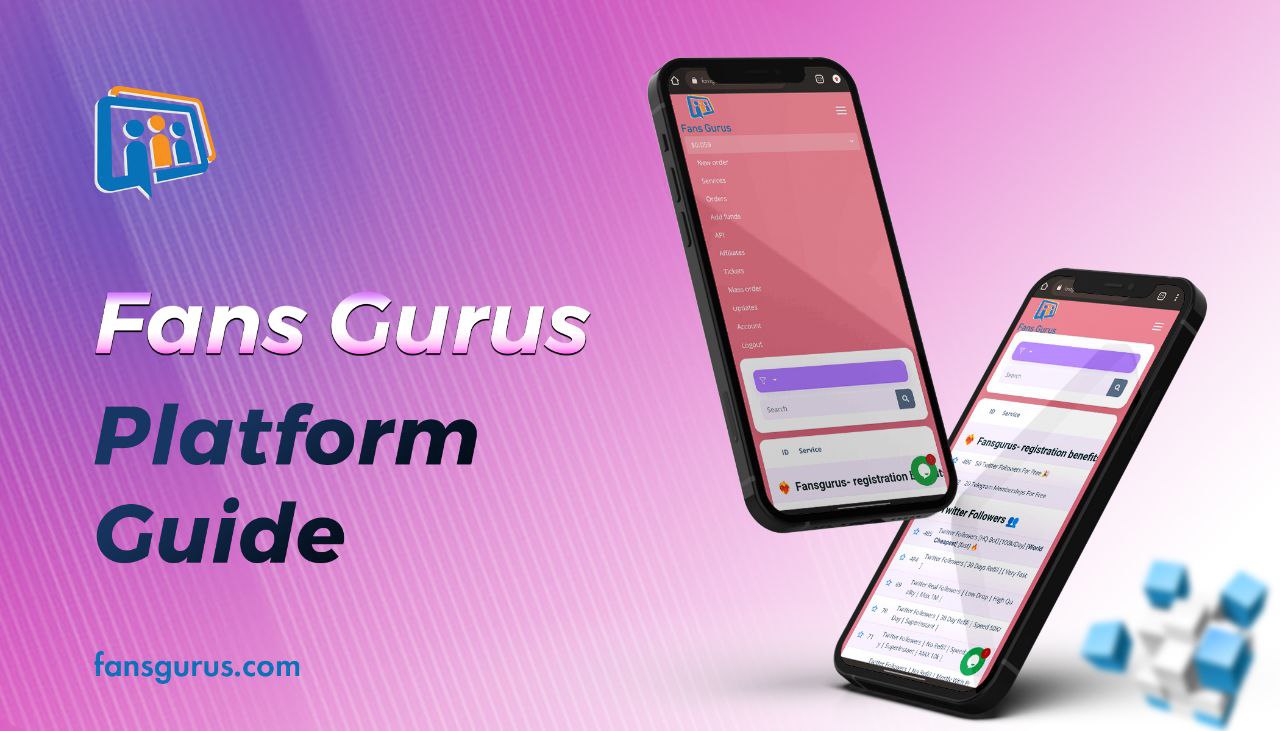
FansGurus is a leading social media marketing (SMM) platform, offering highly competitive pricing and services in the industry. Through our platform, you can easily purchase followers, likes, views, custom comments and shares on major social networks such as Twitter, Telegram, Discord, Instagram, TikTok, Facebook and YouTube, helping your accounts grow quickly across multiple platforms.
Our platform is designed with user-friendliness as a top priority, aiming to provide every user with a smooth, hassle-free experience. We now offer free registration, so you can create an account and explore all of our services in just a few clicks. Even better, by using your referral link, you can not only drive more real followers to your own accounts, but also earn commission rewards.
This article is a practical step-by-step guide that will help you navigate the FansGurus website with ease, including how to register, how to add funds and how to place orders on the platform.
How to Register
Step 1: Visit the website and open the sign-up page
First, go to the FansGurus website: https://fansgurus.com/. Once you are on the homepage, you will see the “Sign Up” and “Log In” options in the header or navigation menu. If you don’t have an account yet, click “Sign Up” to go to the registration page. If you already have an account, simply click “Log In” and enter your credentials.
Step 2: Fill in your registration details
After clicking the “Sign Up” button, the system will redirect you to the registration page. On this page, you’ll need to provide:
- Email address (used to receive verification emails and important notifications)
- Password (please choose a secure and memorable password)
- Username (this will be used to identify your account on the platform)
Once you’ve filled in all fields, check the “I’m not a robot” box to complete the CAPTCHA, then click the “Sign Up” button to continue.
Step 3: Verify your email address
After submitting your registration form, you’ll be redirected to a confirmation page asking you to verify your email address. This step is very important, as it ensures that your email is valid and helps secure your account.
Open your email inbox and look for a verification email from FansGurus. Inside that email, you’ll find a confirmation link. Click the link to verify your email address. Once verification is complete, you’ll be automatically redirected back to the FansGurus homepage and your account will be activated.
How to Add Funds
After you’ve registered and logged in, you can add funds to your account in order to purchase services. From the homepage, open the main navigation menu and click “Add Funds” to go to the top-up page.
At the top of the Add Funds page, you’ll see a field to select your preferred payment method. Currently supported options include:
- Cryptocurrency: USDT, USDC, DOGE (processed via the CoinPayments gateway)
- Alipay: if this option is shown as available, you can pay via Alipay
Select the payment method you want to use, then choose the amount you wish to add. The minimum top-up amount on the platform is 10 USD. After selecting the amount, click the “Pay” button. You’ll then be redirected to the CoinPayments gateway or the corresponding payment page to complete your transaction.
Important Notes
- After you complete the payment, your balance will usually update within around 5–15 minutes. Please be patient.
- Make sure to send the exact amount shown on the payment page. Overpaying or underpaying, even by 0.01, may cause the system to fail to automatically recognize your payment.
- Be sure to use a valid email address, as all order and payment information will be sent via email.
- If the payment amount or details are incorrect, your funds may be delayed or even lost, so always follow the on-screen instructions carefully.
How to Place an Order
Once your account balance has been updated, you can place orders to purchase various social media services. Here’s how:
Step 1: Open the “New Order” page
In the platform navigation menu, click “New Order”. This will open the order form page. On this page, you will see a dropdown menu labeled “Category”. Click this dropdown and select the social media platform you want to work with (for example: Twitter, Instagram, TikTok, etc.).
Step 2: Choose the service type
After selecting a platform, click the “Service” dropdown. You’ll see a list of available services and their prices (for example: followers, likes, views, comments, etc.). Carefully review the service descriptions and pricing, then choose the option that best fits your needs.
Step 3: Read the instructions and fill in the link and quantity
In the “Description” box, you’ll find specific instructions and requirements for the service you have selected. Before ordering, make sure you read these instructions thoroughly and understand the rules (such as whether your account must be public, or whether you should avoid changing your username during delivery).
Scroll down to find the “Link” field. Here, enter the URL for the social media profile or post you want us to deliver the service to. For example:
- Twitter: a tweet URL or profile URL
- Instagram: a post URL or profile URL
- TikTok: a video URL or profile URL
This link is used to ensure that the service is delivered to the correct account or piece of content, so please double-check that it is accurate and publicly accessible.
In the “Quantity” field, enter the number of units you want to purchase, such as the number of followers, likes, views or comments (depending on the service type you selected). The quantity must be entered as a numeric value. The system will automatically calculate the total cost of your order based on the service price and the quantity you have entered, and display it on the page.
Step 4: Confirm and submit your order
After you’ve filled in the link and quantity, review all of the information again to make sure everything is correct, including:
- The platform and service type you selected
- Whether the target URL is correct, accessible and set to public
- Whether the quantity is within the allowed range for that service
Once you’ve confirmed that all details are accurate, click the “Submit” button to place your order. After submission, you can check the order status in your order history. The service will start and be delivered gradually within the time frame indicated in the service description.