Turn Off Telegram Sensitive Content Filter 2026 (iOS and Android)
Fansgurus Editorial Team
·
created at:2026-07-04 04:35:11
·
updated at:2026-07-04 04:35:11
article keywords tips:
#turn off Telegram sensitive content iPhone
#disable Telegram sensitive content Android
#Telegram Disable Filtering web 2026
#unlock Telegram sensitive content iOS
#view sensitive content on Telegram
Open certain channels and you hit a wall: 「This content is classified as sensitive and cannot be displayed」, with everything blurred out. As an adult user you can turn this filter off yourself, but here is the catch: on iPhone that switch does not appear inside the app at all.
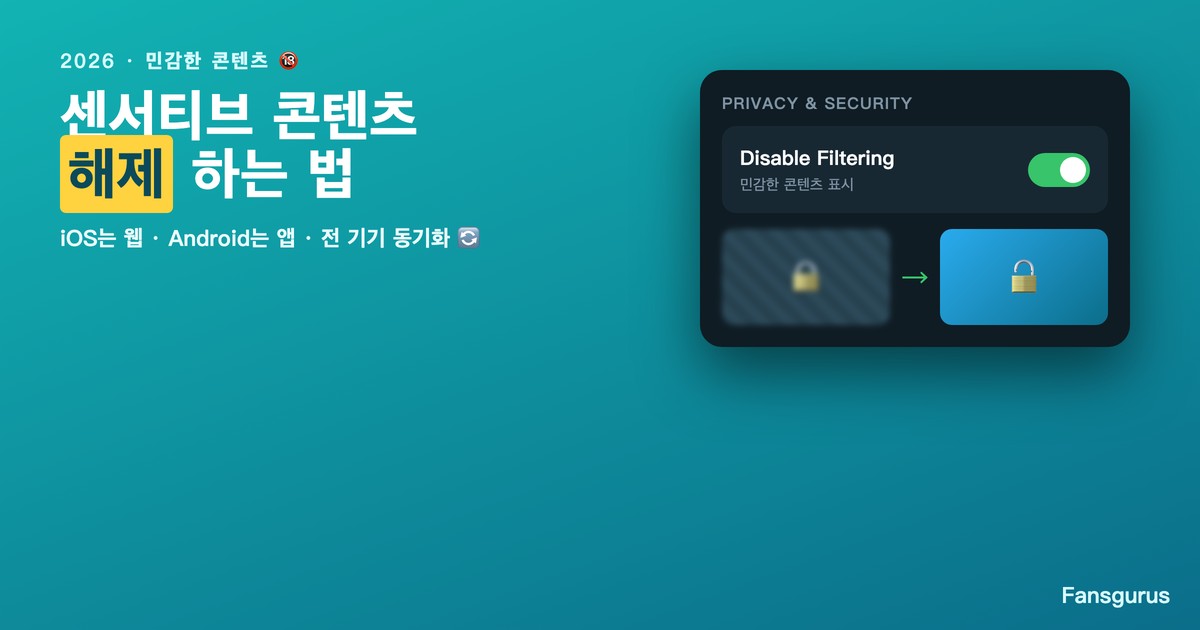
Quick answer (2026): On iPhone (iOS), App Store policy keeps the 「Disable filtering」 switch hidden inside the app, so you have to turn it on at Telegram Web (web.telegram.org). Enable it once on the web and it syncs automatically to every device, iPhone included. On Android, you can switch it off directly in the app under Settings → Privacy and Security. After changing it on the web, fully close and reopen the Telegram app on your phone for it to take effect. (Per each platform's settings, verified 2026-07.)
Why is there no unlock switch inside the iPhone app?
Under Apple App Store policy, Telegram is required to hide the 「Disable filtering」 toggle inside the iOS app. So if you only use an iPhone, you can dig through the app settings all you want and never find the option. The fix is not the app but changing the setting on Telegram Web, and because this setting is account-level, turning it on via the web applies it to every device on the same account, iPhone included. (Sources: techygeekshome and geekchamp 2026 guides.)
iPhone (iOS): the 3-step web method to unlock it
For iPhone users this is effectively the only method that works.
Step 1. Log in to web.telegram.org from your PC or your iPhone browser.
Step 2. Open the menu (☰) at the top left → Settings → Privacy and Security.
Step 3. Scroll down to the Sensitive Content section and turn on 「Disable Filtering」.
Then fully close and relaunch the Telegram app on your phone, and the channels that were hidden will display normally.
Android: turn it off right in the app
On Android you do not need the web at all. Go to the app's Settings → Privacy and Security and turn on Sensitive Content / 「Disable filtering」. This single setting opens up channel and group content that was previously blocked.
What if it still does not show after you change the setting?
Most of the time it is because you did not fully quit and reopen the app. From the recent apps list, fully close Telegram and then relaunch it. If that still does not work, re-check on the web that the setting is actually turned on, and confirm the account you logged in with is the same account as on your phone. Since the setting syncs at the account level, it will not apply if you switched to a different account.
Things to keep in mind (limits and cautions)
Turning off this filter is only an adult's own viewing setting — it does not create content for you or grow your channel. It is best not to enable it on a minor's device, and be careful in work or shared environments. Conversely, if your own channel is being classified as sensitive and its reach is dropping, that is not a viewing setting but a growth and trust issue. For that, also see how to remove Telegram limitations, and if you want to grow a channel on a real user base, you can do it with Fansgurus Telegram services.
Frequently Asked Questions
Q1: How do I turn off Telegram sensitive content on iPhone?
A: The switch is hidden inside the app, so log in to web.telegram.org and go to Settings → Privacy and Security → Sensitive Content, then turn on 「Disable Filtering」. It then syncs automatically to your iPhone too.
Q2: Where do I turn it off on Android?
A: In the app's Settings → Privacy and Security, turn on Sensitive Content / Disable filtering and it applies right away. No web needed.
Q3: I changed the setting but it is still hidden.
A: Fully close the Telegram app on your phone and relaunch it. If that still fails, check on the web that the setting is actually turned on and that you are logged in with the same account as on your phone.
Q4: If I change it on the web, does it apply to my iPhone too?
A: Yes. This setting is account-level, so turning it on via the web syncs it to every device logged in with the same account, iPhone included.
📢 If you found this article helpful, feel free to share it with others: